I Have a website that is not loading correctly, how do i fix it?
If you happen to get a website that will not display a video that you want your students to watch, that will show up on your computer, but will not display on the students' iPads, this is for you.
Step 1: Identify what portion of the website is not displaying properly. This will help us give you a timely fix and response.
(This will usually be some kind of media, rather than the website itself. )
Step 2: Get the link for the media that is not loading.
To do this most easily, I recommend using Chrome.
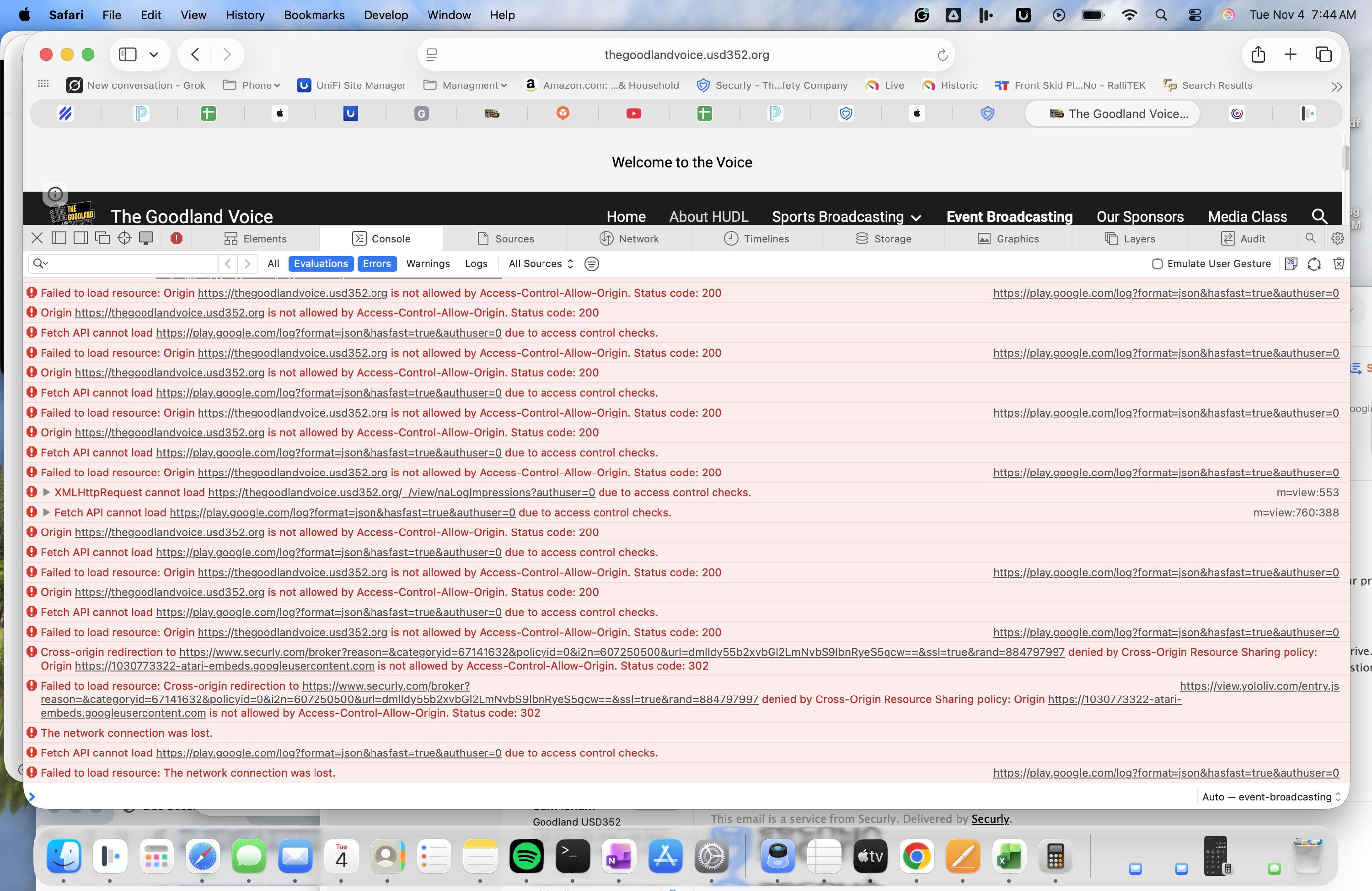
A: In Chrome, right-click on the element that is not loading correctly, then click 'Inspect' or 'Inspect element'. This will bring up a screen, similar to the one you see below.
B: If you do not see this screen, there will be a red icon, similar to the one in the photo below, click on this icon.
C: You should now see a screen of error messages. Screenshot this page, open a ticket using the USD352 ticketing system, and include this screenshot, along with the web domain being used.
If you cannot do these steps, no problem! just open a ticket, and we will be happy to help you through this process.
Thank you! —USD 352 Help Desk